
Activities - How Do I Log Linkedin Messages?
Why Should I Log LinkedIn Messages?
LinkedIn is one of the most common ways to connect with prospects and customers, but those conversations often live outside your CRM.
Logging LinkedIn messages ensures:
Your engagement history is complete
Your team can see what’s been said and when
Deals and relationships aren’t single-threaded or siloed
How to Log a LinkedIn Message as an Activity
Go to the relevant record
(Lead, Contact, Account, or Opportunity)
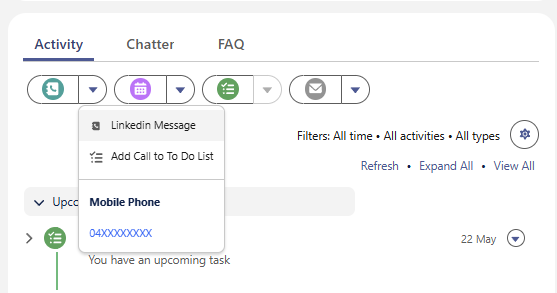
Go to Activity and Click Drop Down Arrow next to Log Call for “Linkedin Message”
In the Comments/Description, include:
A short summary of the message
Any direct quote or reply
Click Save
This logs the message in the Activity timeline for full visibility.
Example
Comments:
Messaged Sarah on LinkedIn confirming our demo time and sent a follow-up asset. She replied: “Thanks, I’ll review before Friday.”
Sent on 20 May 2025 at 10:12am
Can This Be Automated?
❌ Not natively.
Salesforce doesn’t support automatic logging of LinkedIn messages. LinkedIn doesn’t offer direct API access for message syncing due to privacy restrictions.

Tip - Make logging LinkedIn messages part of your routine, especially after a key outreach, proposal share, or objection handling. You’ll thank yourself (and your team will thank you) when you need to reference it later.